Need the Raider Trading installer?
Go to Dashboard →
Log into your dashboard to download the Windows installer — it includes the TradeStation workspace and indicators.
// 01 · Before You Install
Get Everything Downloaded First
Four quick things before you touch an installer: lock in your display scale, then grab both programs you'll need.
-
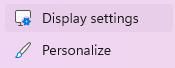
1Right-click your desktop and open Display Settings.
-
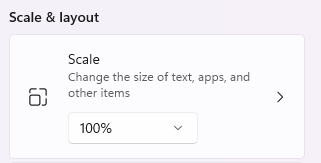
2Set the scale to 100%. Not required, but both the TradeStation workspace and the Raider Trading widget were built for it, and anything else can throw off their layout.
-
3Log into raidertrading.com and click Download next to the Raider Trading Software option, saving
RaiderTrading Setup.exe. While you're there, click Get TradeStation in the same section, or just head to my.tradestation.com/platforms directly.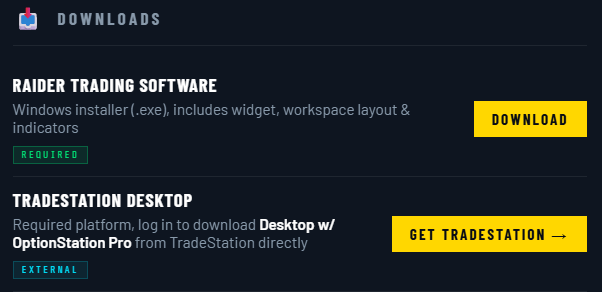
-
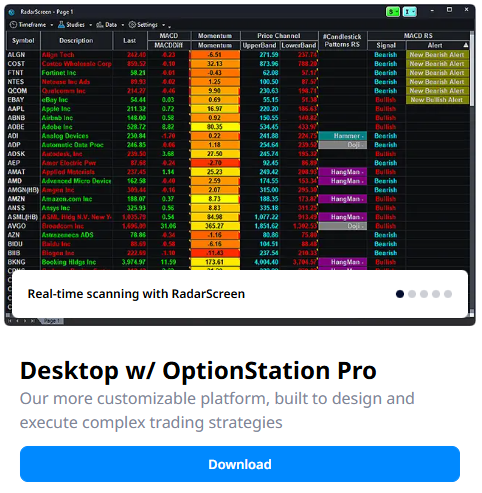
4At my.tradestation.com/platforms (create an account first if you don't already have one), scroll through the Trading Platforms list and click Download under Desktop w/ OptionStation Pro.
// 02 · TradeStation
Install It, Then Update
TradeStation needs a full install-then-update cycle, once before Raider Trading goes in, once right after. Follow these in order and you won't need to think about it again.
-
5Launch the
TradeStation Setup.exefile you downloaded and install TradeStation Desktop.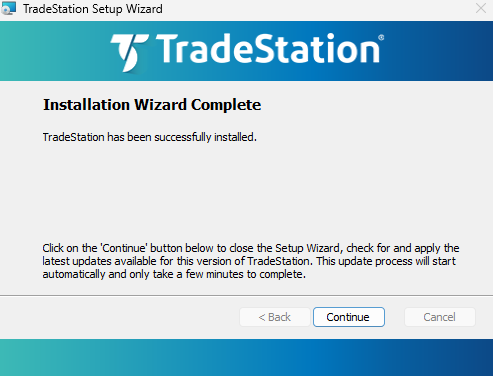
-
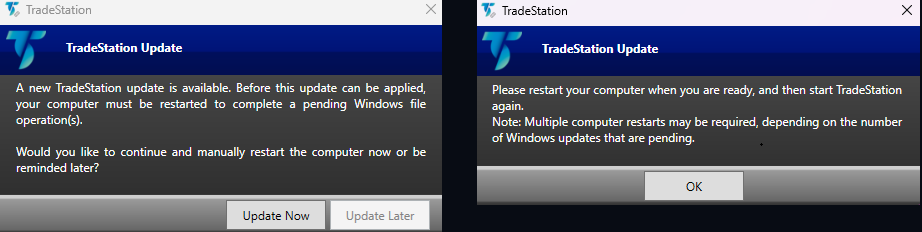
6Click Update Now, then OK, but hold off on restarting for now, there's one more install to run first.
-
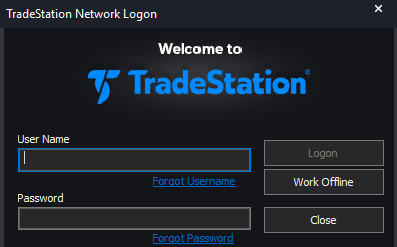
7Open TradeStation. It'll load its default indicators; log in once that finishes.
-
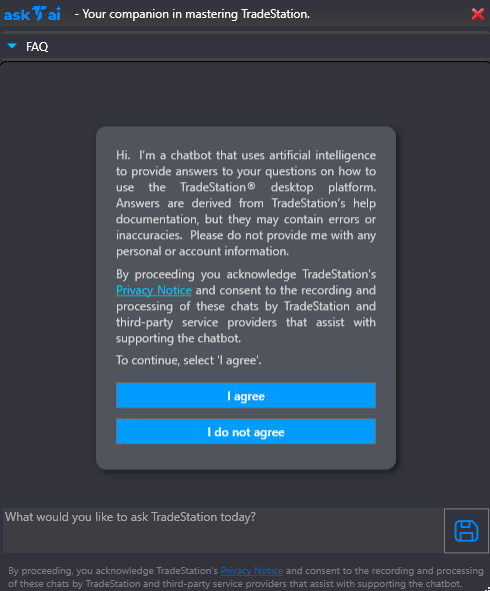
8Once it's loaded, close the AI Agreement prompt.
-
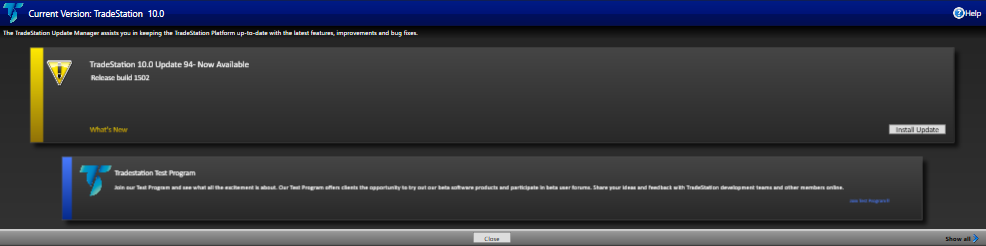
9Click the TradeStation Update prompt at the bottom of the workspace.

-
10Click Install Update on the Update Manager popup.
-
11Click No to All, then Update Now, then OK, then restart your computer, this time for real.

-
12After your computer restarts, launch the
RaiderTrading Setup.exefile you downloaded and install Raider Trading. Once it's done, click "Finish" and minimize the widget.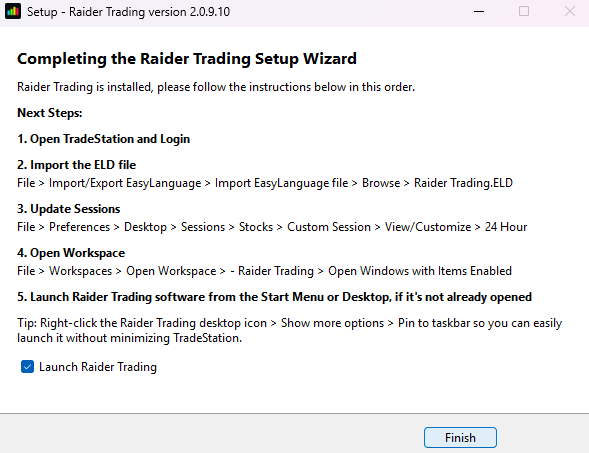
-
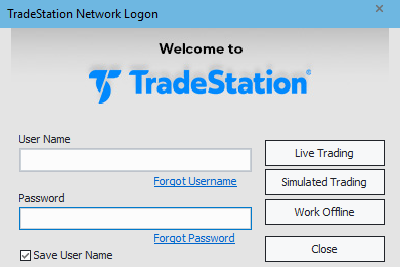
13Open TradeStation again. It'll apply the update it just picked up; log in once it's ready.
// 03 · Raider Trading
Connect It & Start Trading
With both programs installed, this is where Raider Trading actually gets wired into TradeStation.
-
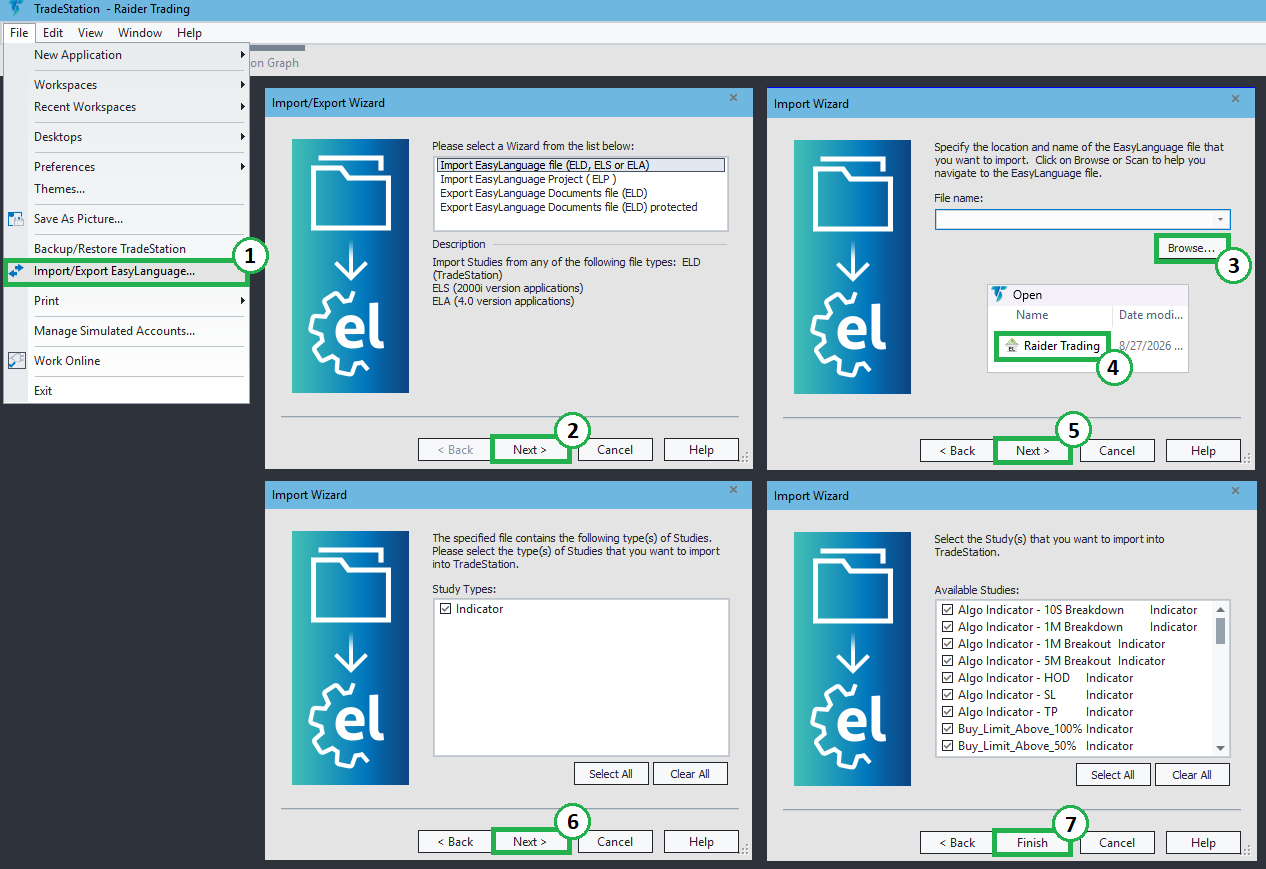
14File → Import/Export EasyLanguage → Next → Browse → double-click Raider Trading → Next twice → Finish.
-
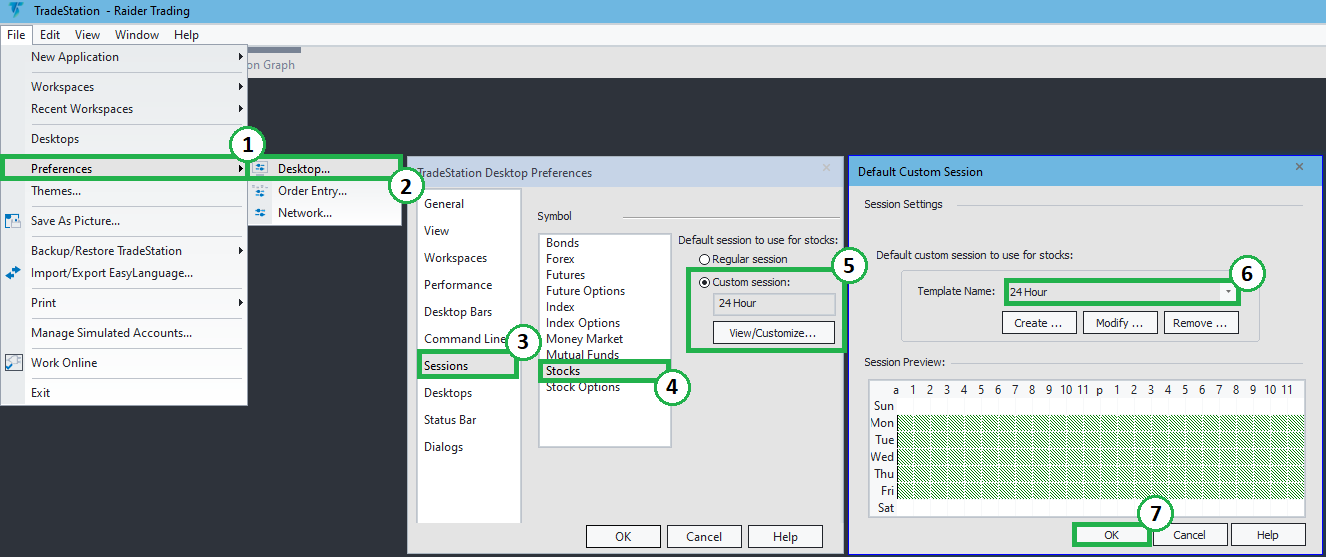
15File → Preferences → Desktop → Sessions → Stocks → Custom Session → View/Customize, then select the 24 Hour template and click OK on both remaining windows.
-
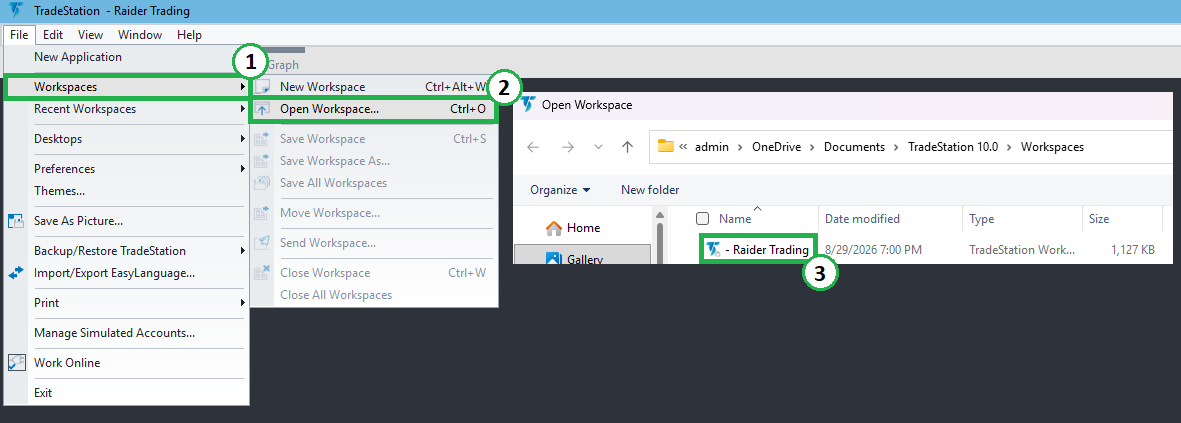
16File → Workspaces → Open Workspaces, then double-click Raider Trading.
-
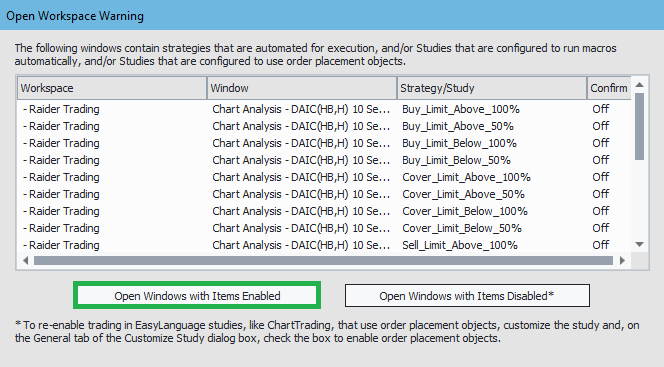
17Once the workspace loads, click Open Windows with Items Enabled.
-
18Open Raider Trading from your taskbar and log in. The radar starts pulling live data immediately, you're ready to start trading!
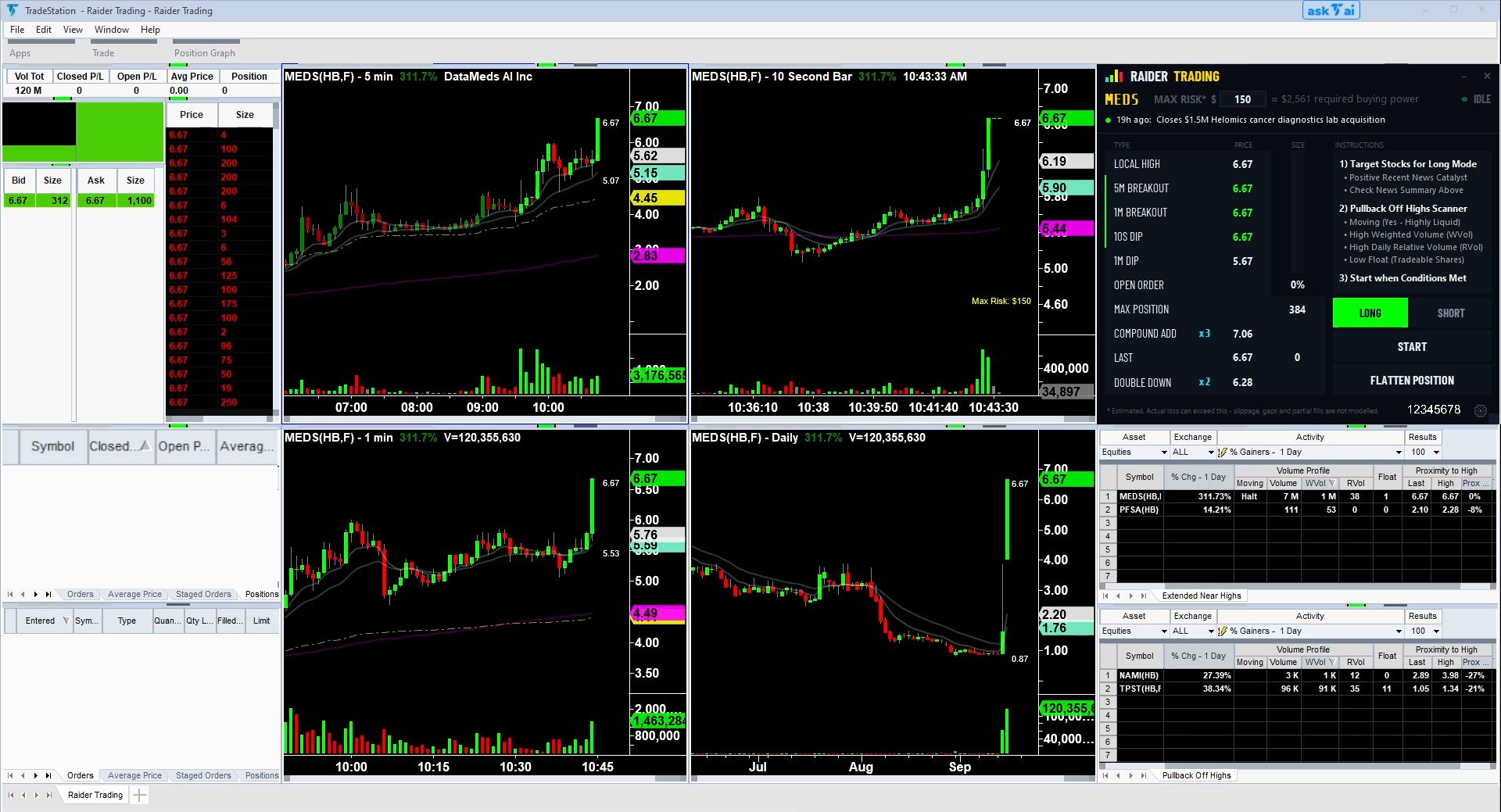 Highly recommended to practice, risk free, in the included "Simulated Trading" TradeStation account before putting live capital on the line. You can switch between Simulated and Live trading on the TradeStation login window.